

Convert Image to Embroidery File: Step-by-Step Guide
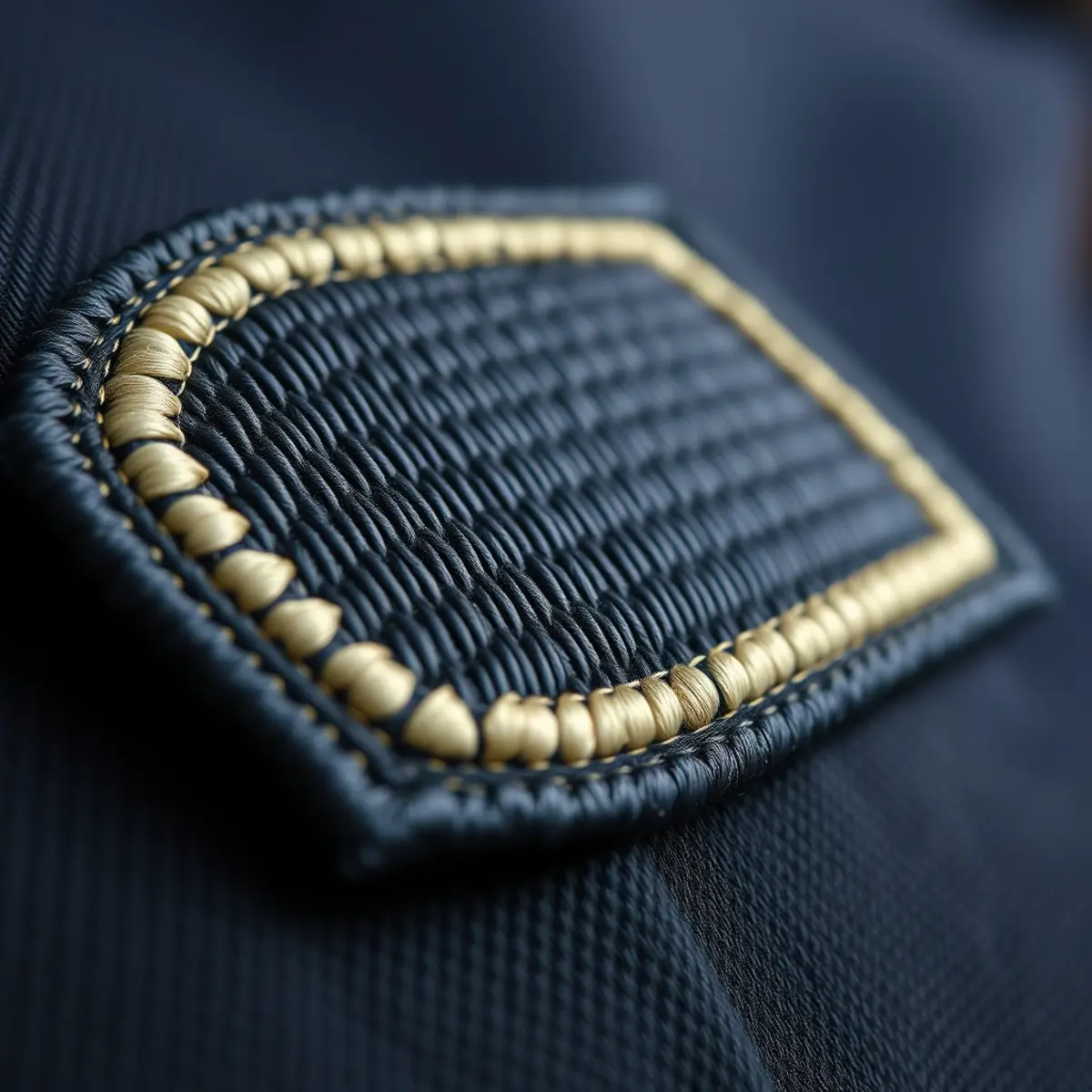
When you want to sew a graphic onto fabric, you must convert image to embroidery file formats that embroidery machines can read. Standard artwork files like JPG or PNG only contain color grids or vector paths, whereas embroidery machines need precise instructions for needle drops, stitch density, and thread trims. Following the proper digitizing steps ensures your design stitches out cleanly without puckering or thread breaks.
Quick answer: To convert an image to an embroidery file, you cannot simply change the file extension. You must digitize the artwork using specialized software to assign stitch types, stitch angles, pull compensation, and needle sequencing, saving the final file into machine-readable formats like DST, PES, or EXP. Professional embroidery digitizing starts at $13.50 per design at EmboroStitch.
Why You Cannot Simply Rename a Picture to Embroidery Format
Many beginners attempt to turn a picture to embroidery by changing a file extension from .jpg or .png to .dst or .pes. A raster graphic or vector file only contains visual information for computer monitors and inkjet printers. It tells a screen which pixels to light up, but it provides zero mechanical data to an embroidery machine.
An embroidery machine requires exact mechanical commands. The machine must know where the needle punctures the cloth, how tightly the thread pulls against the fabric, which thread color sews first, and when the machine needs to trim jump stitches. Translating artwork into these mechanical coordinates is a dedicated process called embroidery digitizing.
Common File Formats in the Conversion Process
Converting artwork requires moving from visual graphic formats into machine-specific embroidery formats. Knowing your source format and your target output prevents production errors.
| File Type | Format Category | Common Extensions | Role in Embroidery |
|---|---|---|---|
| Raster Image | Visual Source | JPG, PNG, BMP, GIF | Original reference artwork containing pixels. |
| Vector Graphic | Visual Source | AI, EPS, SVG, PDF | Clean line art and shapes ideal for manual digitizing. |
| Commercial Stitch File | Machine File | DST, EXP | Contains stitch coordinates for commercial multi-needle machines. |
| Home Machine File | Machine File | PES, JEF, HUS, VIP | Includes stitch coordinates and specific brand color palettes. |
Step 1: Prepare and Clean Your Source Image
The quality of your finished embroidery directly depends on your input artwork. When you convert jpg to embroidery file formats, low-resolution pixels and compressed artifacts create jagged edges that make precise manual tracing difficult.
Begin by simplifying small details that cannot be reproduced with thread. Thread has physical thickness, meaning details smaller than 2 millimeters or text under 4 to 5 millimeters tall rarely sew cleanly. If your image has gradients, high-contrast flat colors usually yield superior embroidery results. Preparing clean vector outlines before importing the artwork into embroidery software significantly streamlines the process. If your logo is blurry, using a vector art service to redraw the graphic creates clean paths for digitizing.
Step 2: Import Artwork and Calibrate Dimensions
Open your digitizing software and import your image file. The very first operational step is setting the target design dimensions. You must design for the exact finished size rather than resizing the stitch file later.
Resizing an already-digitized stitch file by more than 10 to 15 percent ruins the stitch density. If you enlarge a stitch file without recalculating, the stitches spread out and leave open fabric showing through. If you shrink it, stitches bunch together tightly, breaking needles and jamming thread. Always set your artwork to the exact target width and height before placing your first stitch.
Step 3: Choose the Right Stitch Types
Different elements of an image require specific stitch types. Selecting the wrong stitch results in distorted lettering, puckered fabric, or loose threads that snag easily.
- Satin Stitches: Best for borders, outlines, and lettering. Satin stitches run thread back and forth across a narrow column, creating a smooth, glossy surface. Columns should generally measure between 1.5 millimeters and 7 millimeters wide.
- Fill Stitches (Tatami): Designed for large open areas. Fill stitches use alternating rows of small running stitches to cover broad shapes without creating long, loose threads that catch and tear.
- Running Stitches: Single-line stitches used for tiny details, delicate stems, travel paths under other shapes, and underlay support.
Step 4: Establish Stitch Direction and Underlay
Stitch direction dictates how light reflects off your thread and how the fabric shifts during production. Angling stitches across different segments prevents the design from looking flat and lifeless.
Underlay is the foundational stitching sewn beneath the top visible stitches. It attaches the fabric to the stabilizer backing and creates a raised base for the top thread. Without sufficient underlay, top stitches sink directly into the weave of the fabric or shift out of alignment, creating visible gaps between colors.
Step 5: Apply Pull Compensation
Fabric is flexible, and thread is pulled under tension. As an embroidery needle penetrates the garment, thread tension pulls the fabric inward along the direction of the stitch while pushing it outward at the needle entry points. This physical behavior is known as the push-pull effect.
To convert an image to an embroidery file successfully, you must add pull compensation in your software settings. Pull compensation slightly widens satin columns and extends fill borders beyond the visual outline of the artwork. This ensures that when the machine pulls the thread tight, adjacent colors touch cleanly without leaving fabric gaps between outlines and fills.
Step 6: Set Sewing Order and Color Stops
An embroidery machine sews elements sequentially. You must organize your objects so the machine stitches from the center outward or from the background to the foreground. Stitching from the outside edges toward the center traps loose fabric in the middle, creating noticeable ripples.
Sequence the design to group identical thread colors together whenever possible. Grouping common colors minimizes unnecessary thread trims and color changes, saving run time on the machine. Ensure that travel paths connecting separated objects hide beneath areas that will be covered by later stitches.
Step 7: Export from PNG to DST or Other Stitch Formats
Once your digitizing nodes, underlays, and density values are set, run a digital stitch simulation inside your software. The simulator highlights long jump stitches, excessive density spots, and erratic pathing before you ever load the design onto an embroidery machine.
Save your master working file in your software’s native format, such as EMB or PXF, so you can adjust nodes later. Then, export the machine-readable file. Commercial multi-needle machines commonly run on DST or EXP files. When turning a png to dst format, your file saves the raw needle movement data and trim commands, ready for production on high-speed equipment.
Manual Digitizing vs. Auto-Digitizing Software
Modern software packages frequently promote one-click auto-digitizing features. While auto-digitizing seems fast, it relies on basic contrast algorithms that struggle to interpret complex shapes correctly.
Auto-digitizing frequently assigns uniform stitch angles across curved letters, ignores necessary underlay, and misjudges push-pull forces. The result is often an unwearable stitchout with heavy density, puckered shirts, and broken threads. Manual digitizing requires human judgment to evaluate fabric weight, select proper angles, and plan logical sewing paths that protect both the garment and the machine.
Creating Physical Patches from Digitized Files
Digitized embroidery files are not only used for direct garment embroidery; they also drive production for custom patches. If you intend to turn your artwork into a separate patch rather than stitching directly onto a shirt or jacket, your digitizer must account for structural patch elements.
Patches require a sturdy background base such as twill or felt, along with a defined border to seal the edges. Common options include a classic merrow border for standard shapes or a heat-cut satin border for intricate contours. When you place an order with EmboroStitch, setup is included in the price, and our team provides a Free Digital Mockup Before Production showing your dimensions, colors, backing, and border style before any stitching begins.
Professional Digitizing with EmboroStitch
Digitizing artwork correctly requires dedicated software, technical experience, and an understanding of fabric behavior. If you prefer to have your artwork digitized professionally, EmboroStitch offers complete embroidery digitizing services.
Our digitizing service starts from $13.50 per design, delivered in 24 hours (with a 2–4 hour rush option available). We output clean, production-ready files in DST, PES, EXP, and other industry formats calibrated specifically for smooth runnability on commercial and home embroidery machines.
Frequently Asked Questions
Can I convert a JPG or PNG into an embroidery file for free?
Free image-conversion utilities cannot create a functional embroidery file because they only change the extension. True digitizing requires dedicated embroidery software where you program stitch density, pathing, and underlays. Without those machine instructions, an embroidery machine cannot read the file.
What is the difference between DST and PES formats?
DST is a universal commercial format originally created by Tajima that stores stitch coordinates and stop commands without specific thread color information. PES is a format used primarily by Brother, Baby Lock, and Bernina home machines that stores both stitch coordinates and specific brand color palettes.
What resolution should my image be before digitizing?
Your source image should ideally be 300 DPI at the target output size, or provided as clean vector paths. High-resolution artwork ensures that lines and curves remain sharp when zoomed in, allowing the digitizer to place needle points accurately.
Why does my digitized embroidery file pucker on fabric?
Puckering usually happens when stitch density is too high, underlay stitching is missing, or pull compensation was not properly applied. When thread tension pulls the fabric without proper stabilizer or underlay support, the material bunches up under the stitches.
How fast can EmboroStitch digitize my artwork?
Standard digitizing orders are delivered in 24 hours, with a rush option available in 2–4 hours. Pricing starts from $13.50 per design, and files are provided in DST, PES, EXP, and other requested formats.
Ready to Order Your Custom Patches?
Orders start at just 10 pieces, and every patch order includes a Free Digital Mockup Before Production. Send us your design and your quote shows every cost before you pay.
Need Custom Patches?
Send us your design and get honest pricing back within 24 hours, plus a free digital mockup before production. No obligation.
Get a Quote